


eSIM Installation and Activation
Complete guide to install and activate eSIM on iPhone and Android devices.
eSIM Installation Guide
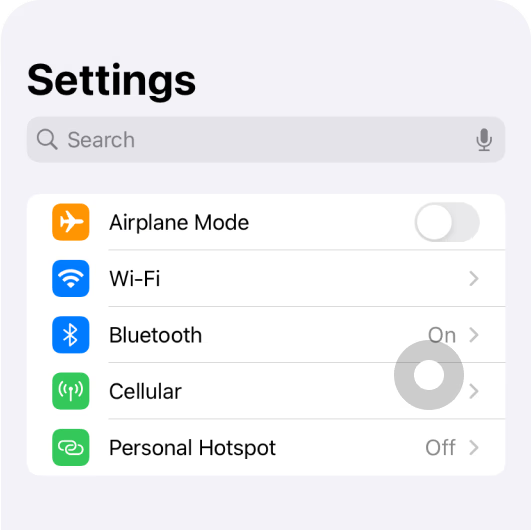
Go to Settings.
Tap on Cellular or Mobile Data.
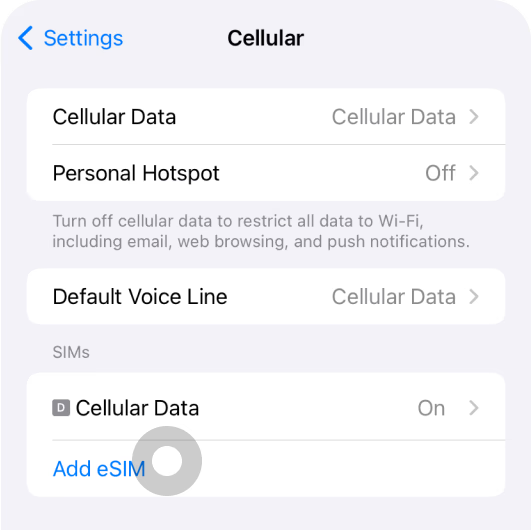
Select Add eSIM.
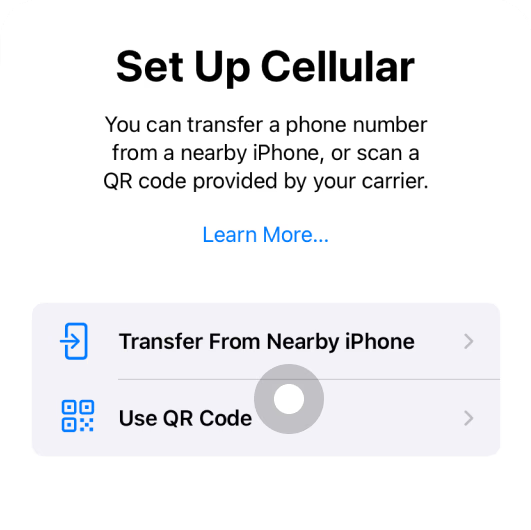
Tap on Scan QR Code.
Select Use QR Code.
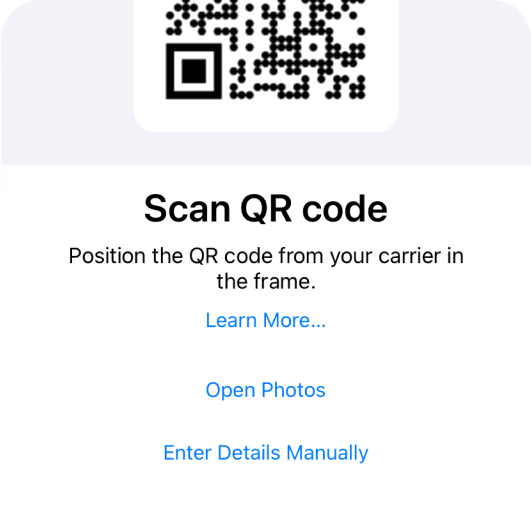
Scan the QR code provided by your carrier.
Scan the QR code provided in your email or order details.
For manual installation, tap on 'Enter Details Manually'.
eSIM Activation Guide
Upon arrival, you can now start the activation process.
The steps are the same for iPhone and Android devices. Use an unlocked and eSIM-compatible phone to enable the data plan.
Turn on eSIM Data Roaming.
After installation, go to Settings > Cellular/Mobile Data and enable the eSIM.
Enable Cellular Line.
Activate the eSIM you just installed. Make sure to select this eSIM for cellular data. Go to Settings > Cellular/Mobile Data > Your eSIM > Turn On This Line.
Check APN Settings.
Usually, APN is set automatically. If the APN is blank after network reset, network speed might be slow or incorrect. Please manually reset the network by tapping 'Reset APN'.
Verify your network connection.
Turn off Wi-Fi and enable data connection for the eSIM. The status bar should show an internet connection signal (LTE/5G). Confirm that you can send and receive data normally.
Important Notes:
- Install and activate the QR code before you leave. You may need Wi-Fi to complete the steps.
- Do not turn on roaming until you arrive at your destination.
- Once deleted, eSIMs usually cannot be restored. Please ensure you do not delete it accidentally.